UI Embeddings
Use these layouts when the standard floating widget is not the right fit. Click a picture to jump to its setup.
 Search bar
 Inline chat
 Fullscreen
The pictures show a demo store with the real scripts. Colors, logo and texts come from your chatbot's settings.
Search bar
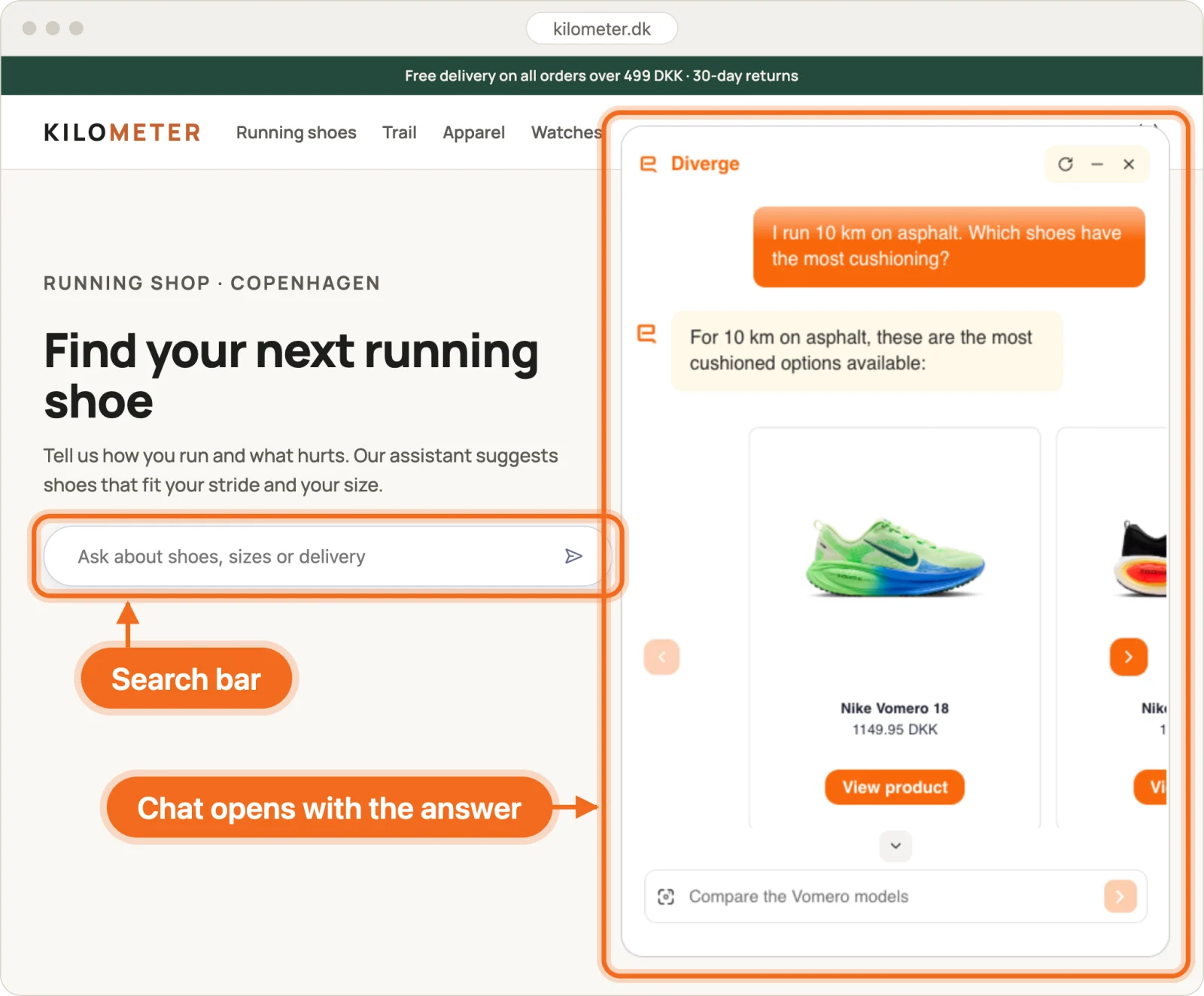
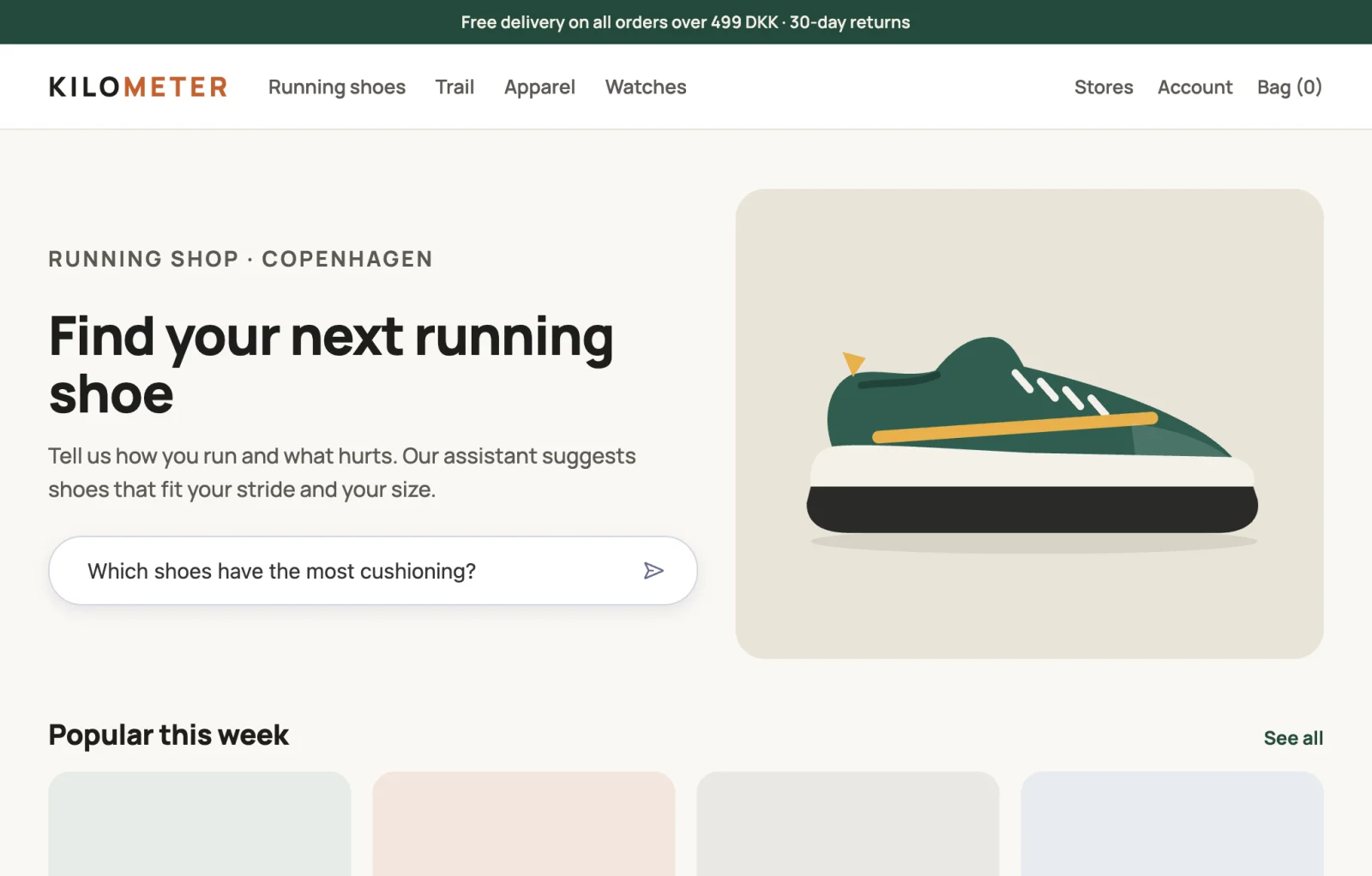
Start page: the visitor asks in the search bar, and the chat opens with the answer.
What it gives: visitors ask in their own words, in a field they already see, and get an answer with products in the chat. At one running store, the search bar on product pages became the largest entry point: 62% of conversations started there.
Where it appears: wherever you add its container. Common places are under the size selector on a product page and at the top of the customer service page.
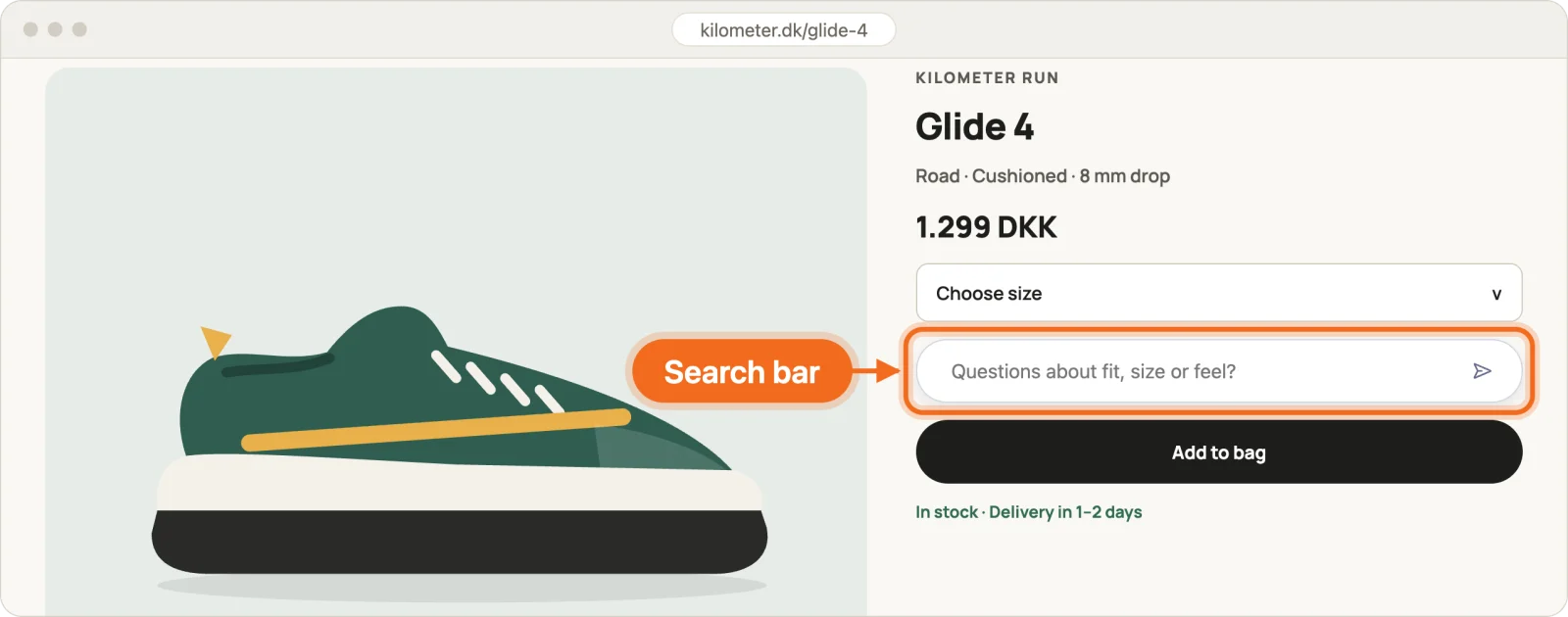
Product page: under the size selector.
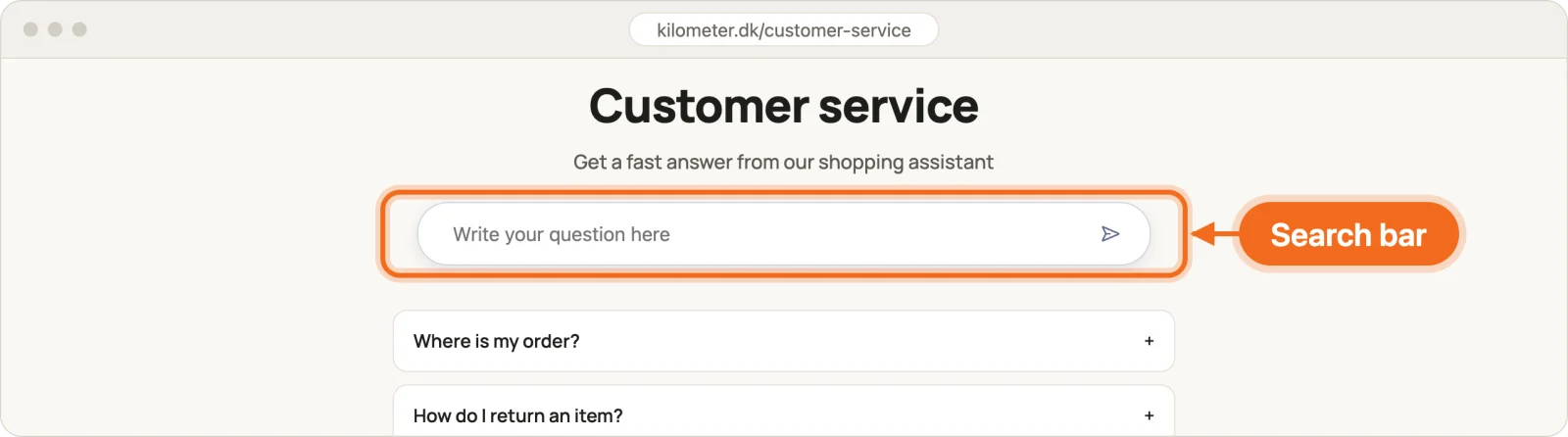
Customer service: the first thing on the page, above the FAQ.
Setup
- Load the search bar script after the chatbot script:
<script src="https://scripts.askdiverge.ai/universal-chatbot.js?id=YOUR_CHATBOT_ID"></script>
<script src="https://scripts.askdiverge.ai/inline-search-bar.js"></script>- Add a container where the search bar should appear:
<div class="chatbot-search-widget" data-placeholder="Ask us anything..." hidden></div>For more search bars on the same page, add more containers with the same class.
Good to know
- The script owns the container: its contents and when it shows. Keep the container empty and
hidden, and put any normal search fallback outside it. - During an outage the whole search bar hides. Text the visitor hasn't sent yet is kept.
- It also works when you load the chatbot script with
hidden=true, so the floating chat button doesn't have to show.
Wrap the query in a sentence
By default the search bar sends exactly what the visitor typed. To give the chatbot context, wrap
the query in a sentence with data-message-template. {query} is replaced with what the visitor
typed:
<div
class="chatbot-search-widget"
data-placeholder="Search for a product..."
data-message-template='I am looking for sizing help with "{query}", can you help me?'
hidden
></div>A visitor searching for wine makes the chatbot receive:
I am looking for sizing help with "wine", can you help me?If you only need text before or after the query, use data-message-prefix and
data-message-suffix instead:
<div
class="chatbot-search-widget"
data-message-prefix="What is the delivery time on "
data-message-suffix="?"
hidden
></div>A visitor searching for wine makes the chatbot receive What is the delivery time on wine?.
- Each search bar has its own attributes, so search bars on the same page can use different sentences.
{query}can appear more than once. Every occurrence is replaced.- When
data-message-templateand a prefix or suffix are both set, the template wins. - If the template has no
{query}, the search bar sends the raw search word and records an invalid-template diagnostic. - All three attributes are optional. With none set, the search bar sends the raw search word.
Manual initialization
To put the search bar into an element of your own, or to set its options in JavaScript, call
initChatbotSearchWidget with a CSS selector:
<script>
window.initChatbotSearchWidget("#my-custom-element", {
placeholder: "How can we help?",
sendLabel: "Send question",
messageTemplate: 'I am looking for sizing help with "{query}", can you help me?',
sendIconColor: "#333",
borderRadius: "10px",
maxWidth: "500px",
});
</script>messagePrefixandmessageSuffixwork here too. Data attributes on the element win over the config object.sendLabel(ordata-send-label) sets the send button's accessible name. By default it uses the page language.- Keyboard focus stays visible, and the search bar follows reduced-motion settings.
Inline chat
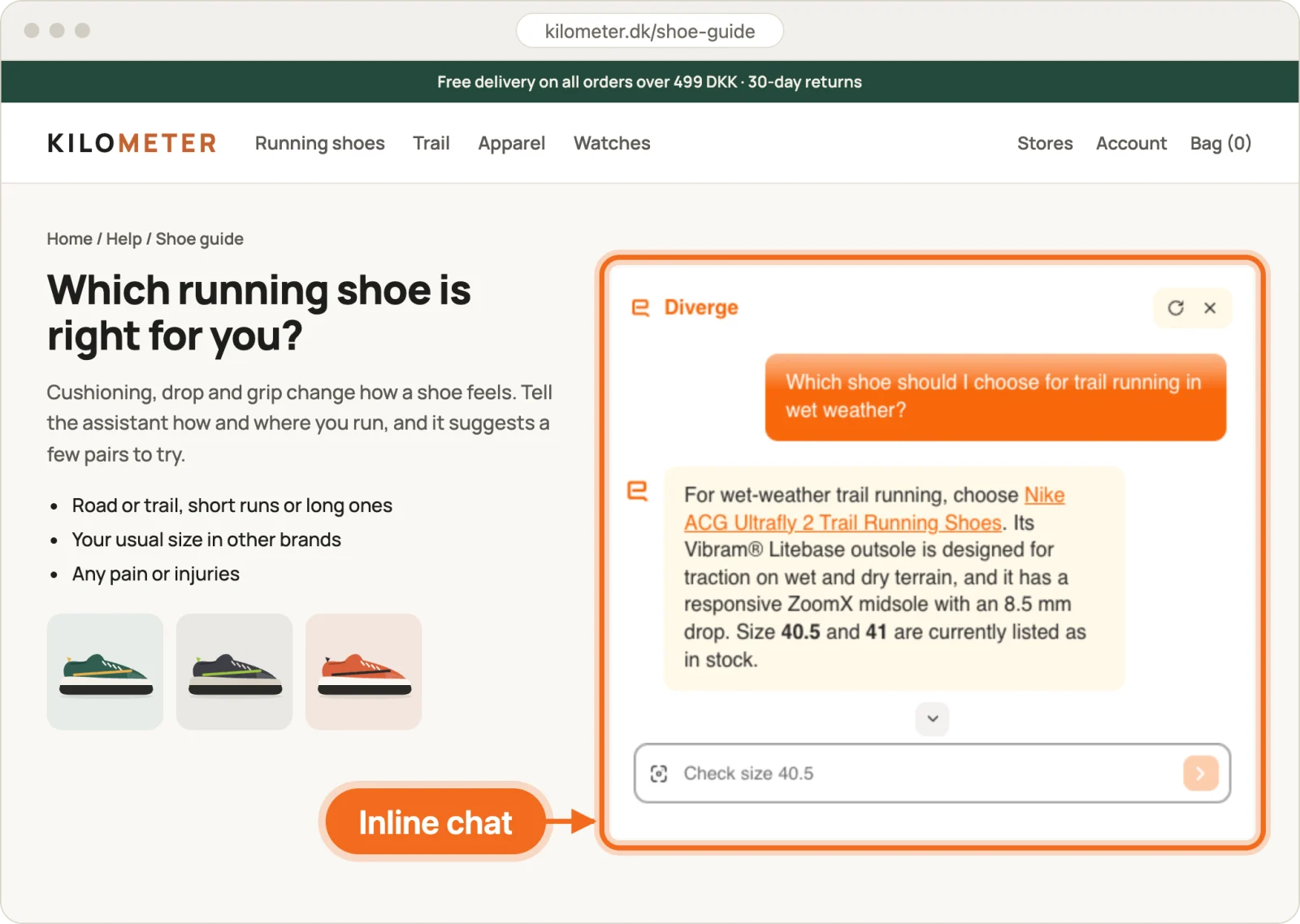
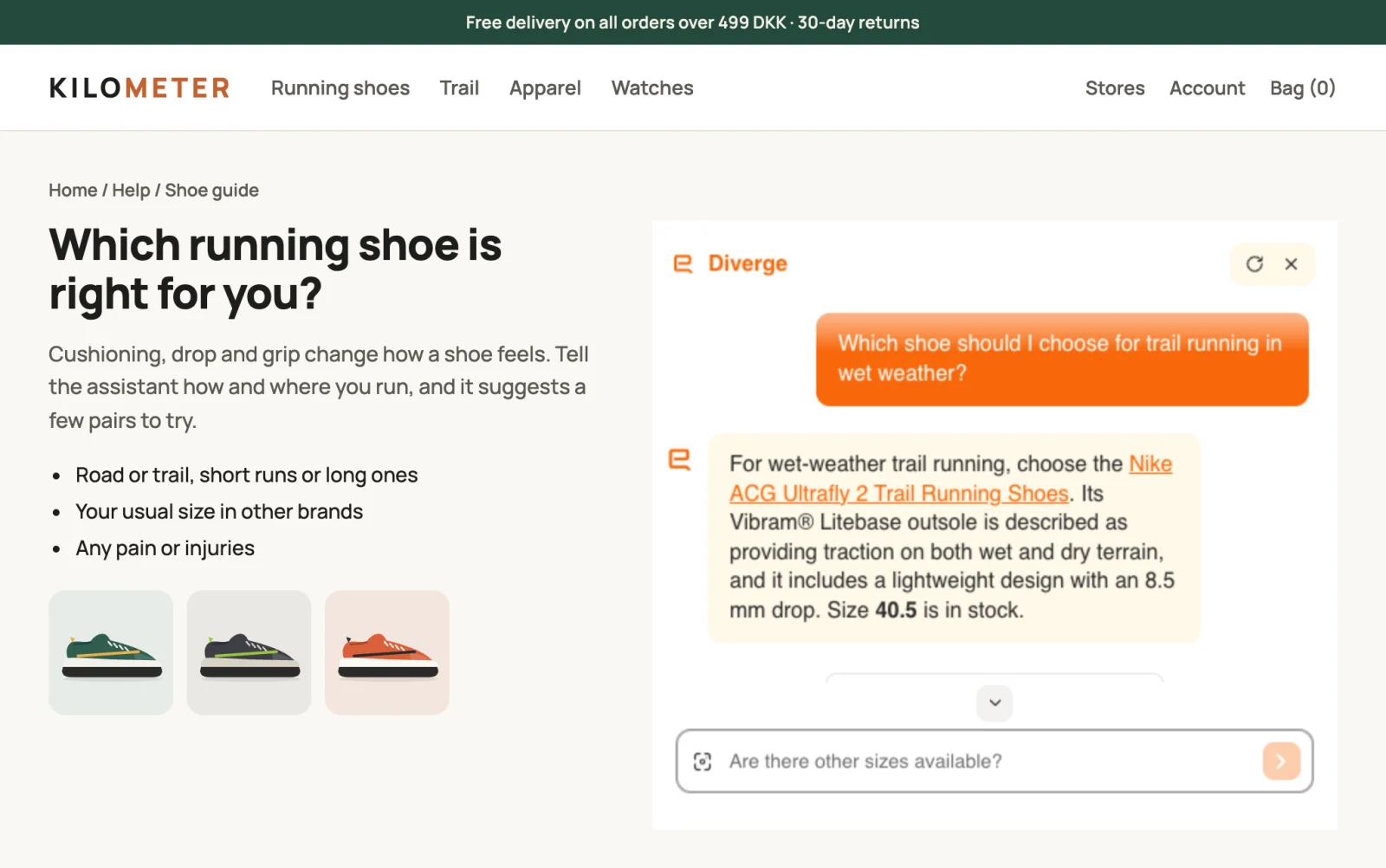
Shoe guide: in the right column, next to the guide text.
What it gives: visitors ask right next to the content they are reading, and the conversation stays on the page instead of in a window on top of it.
Where it appears: wherever you put #chatbot-placeholder. It fills the width of that element
and is about 450 px tall once the conversation is open. Good places are a buying guide or a help
page.
Setup
<div id="chatbot-placeholder" data-chatbot-id="YOUR_CHATBOT_ID"></div>
<script src="https://scripts.askdiverge.ai/chatbotinline.js?id=YOUR_CHATBOT_ID"></script>Good to know
- It starts as a question field. After the visitor's first question, the chat opens in the page.
- If
#chatbot-placeholderis missing, the script adds the chat next to the script tag. - Use one chatbot ID per page. A second script with the same ID reuses the first one.
- It has the same JavaScript API and visitor assignment as the floating chat.
- Before the first question, it hides during an outage and comes back by itself. An open conversation stays during an outage.
Welcome text
To change the text above the question field, set inlineWelcomeMessage in
window.__CHATBOT_INLINE_OVERRIDES__ before you load chatbotinline.js:
<div id="chatbot-placeholder"></div>
<script>
window.__CHATBOT_INLINE_OVERRIDES__ = {
inlineWelcomeMessage: "How can we help you today?",
};
</script>
<script src="https://scripts.askdiverge.ai/chatbotinline.js?id=YOUR_CHATBOT_ID"></script>The overrides apply only to this inline chat.
Fullscreen
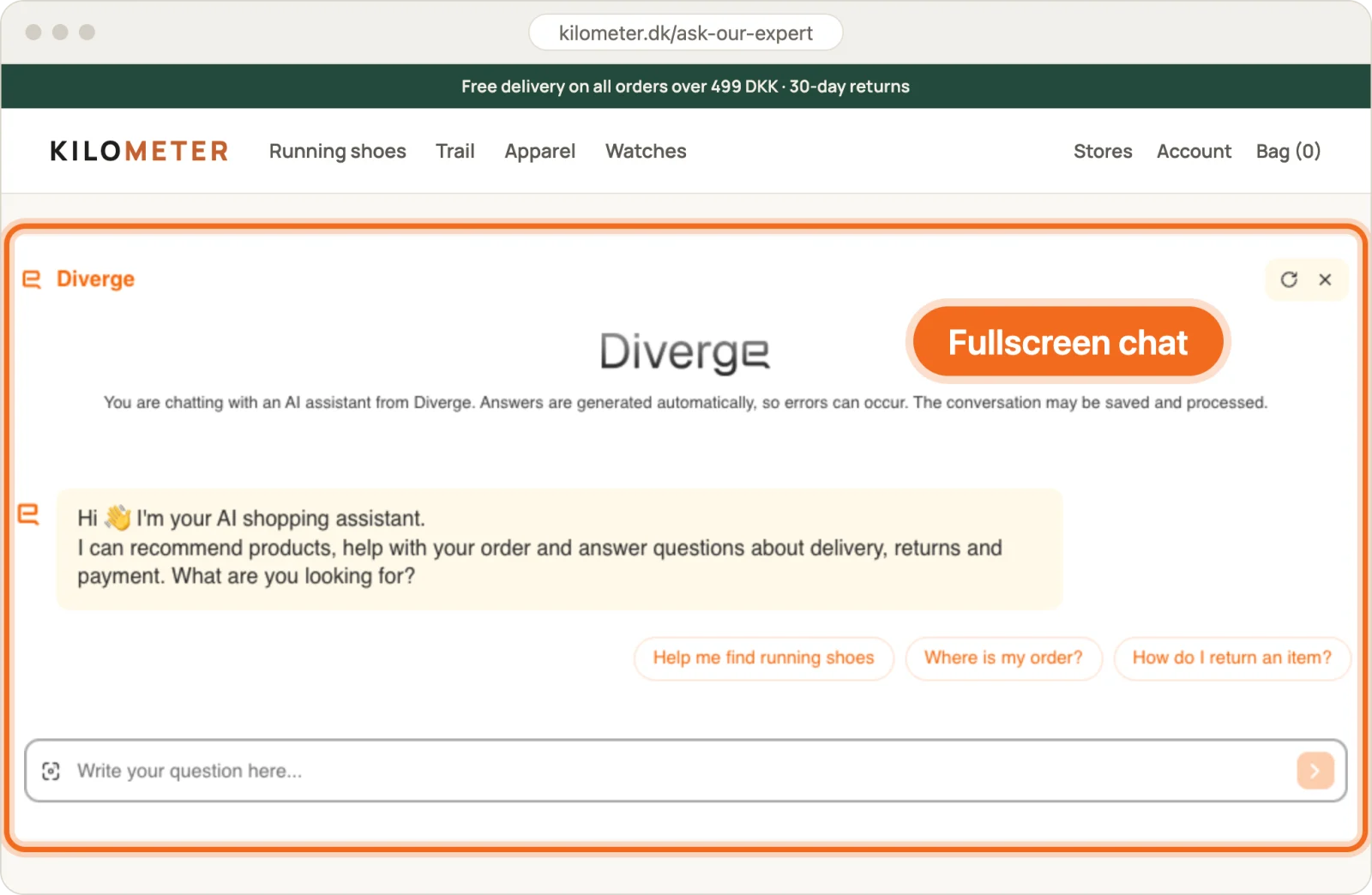
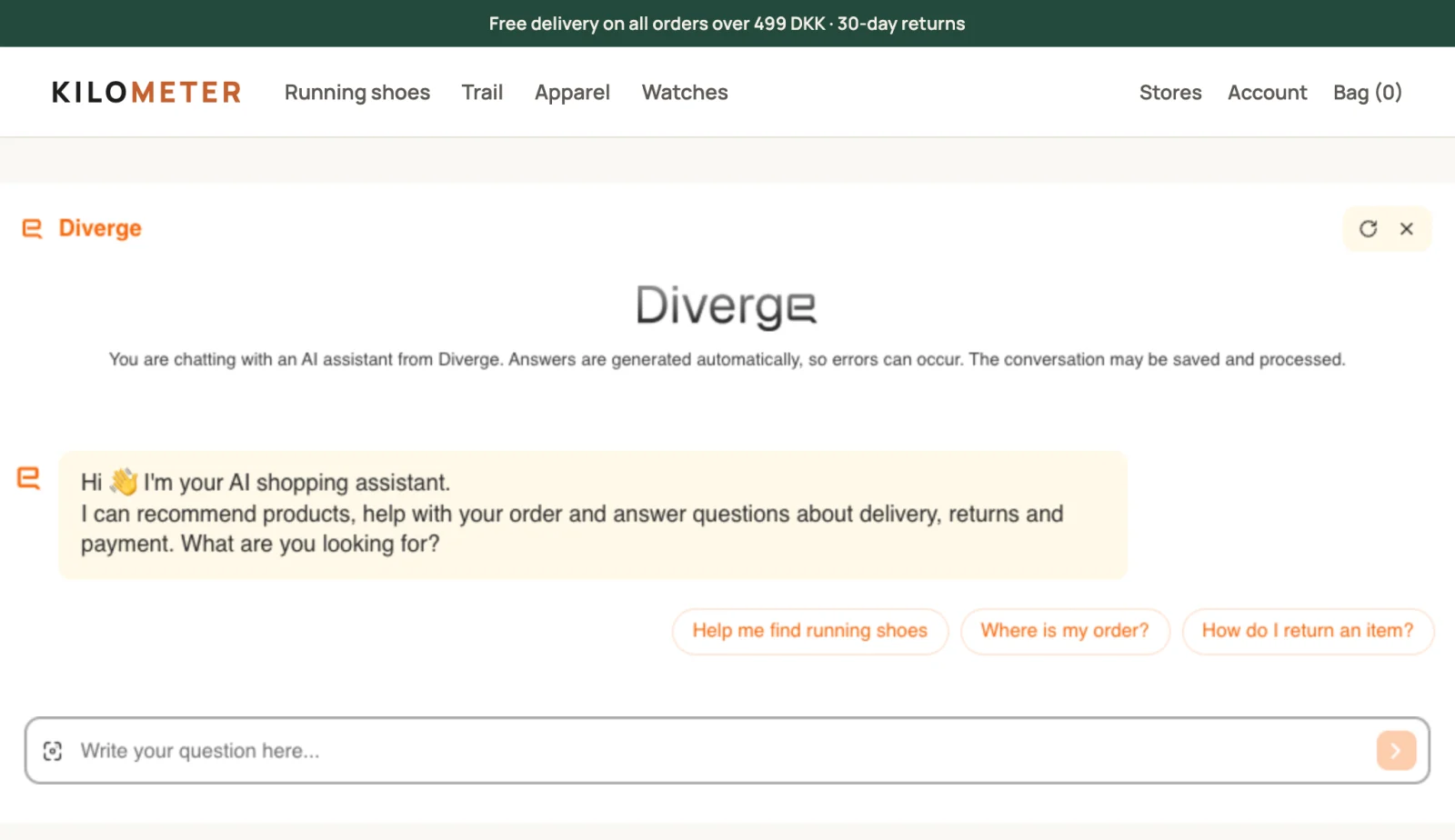
Ask our expert page: under the store header, open on the first message.
What it gives: the inline chat, open from the start. Visitors see the chatbot's first message and suggested questions before they type anything.
Where it appears: wherever you put #chatbot-placeholder, across its full width. Use it as the
main content of a page made for the chat, such as an "Ask our expert" page.
Setup
<div id="chatbot-placeholder"></div>
<script>
window.__CHATBOT_INLINE_OVERRIDES__ = {
fullscreenStartOpen: true,
};
</script>
<script src="https://scripts.askdiverge.ai/chatbotinline.js?id=YOUR_CHATBOT_ID"></script>Good to know
fullscreenStartOpenisfalseby default, so existing inline chats still start with the question field.- The rules for the inline chat apply here too.
To add a welcome line as well, set both options:
<div id="chatbot-placeholder"></div>
<script>
window.__CHATBOT_INLINE_OVERRIDES__ = {
inlineWelcomeMessage: "How can we help you today?",
fullscreenStartOpen: true,
};
</script>
<script src="https://scripts.askdiverge.ai/chatbotinline.js?id=YOUR_CHATBOT_ID"></script>Scripts and outages
- The search bar needs the chatbot script (
universal-chatbot.js). Inline chat and fullscreen usechatbotinline.jsinstead. - If you cache, self-host, or pin the scripts, update the chatbot script and the search bar script together and refresh both caches. With an older chatbot script, the new search bar stays hidden, because the older script has no service health signals.
- All these layouts hide while they load, when the visitor is in a Bot off test group, or when the service is down. They come back by themselves when the chatbot is ready. This works on every website, with or without Shopify.
- Open conversations keep their messages and retry buttons during an outage.
- Service health never changes which A/B test group a visitor is in.
- For your own buttons or a fallback search or contact form, see availability and service health.
Related reading
- Chatbot Integration: floating widget,
open(), and session metadata - Chatbot Config & Theming: colors and display settings